Running without a daemon
In some situations, particularly with desktop computers where monitor configurations remain stable, running the HyprDynamicMonitors daemon may be unnecessary. If you prefer manual control over when monitor configurations are applied and rendered, you can use the TUI exclusively without the daemon.
This guide shows you how to manage your monitor configurations using only the TUI, giving you complete control over when changes are persisted to disk.
If you need dynamic configuration that responds to monitor or power state changes, consider keeping the daemon enabled or using the mode pattern guide instead.
TUI terminology
Before diving into the workflows, it's helpful to understand these key concepts:
-
HDM config - The HyprDynamicMonitors configuration file (typically
~/.config/hyprdynamicmonitors/config.toml) that stores profiles and settings. -
Profile - A saved monitor layout in HDM that includes monitor configurations (position, scale, rotation, etc.) and the required monitors it matches.
-
Applying monitors to profile - Saving the current monitor layout settings to an existing or new profile in your HDM config file.
-
Rendering - Generating the Hyprland monitor configuration from HDM profiles and writing it to the destination file (typically
~/.config/hypr/monitors.conf). When running without a daemon, you need to manually trigger this with theRkeybind. -
Ephemeral apply - Applying monitor settings directly to Hyprland without saving to a profile or rendering to the destination file. Useful for testing layouts on-the-fly.
Workflows
Creating a new profile
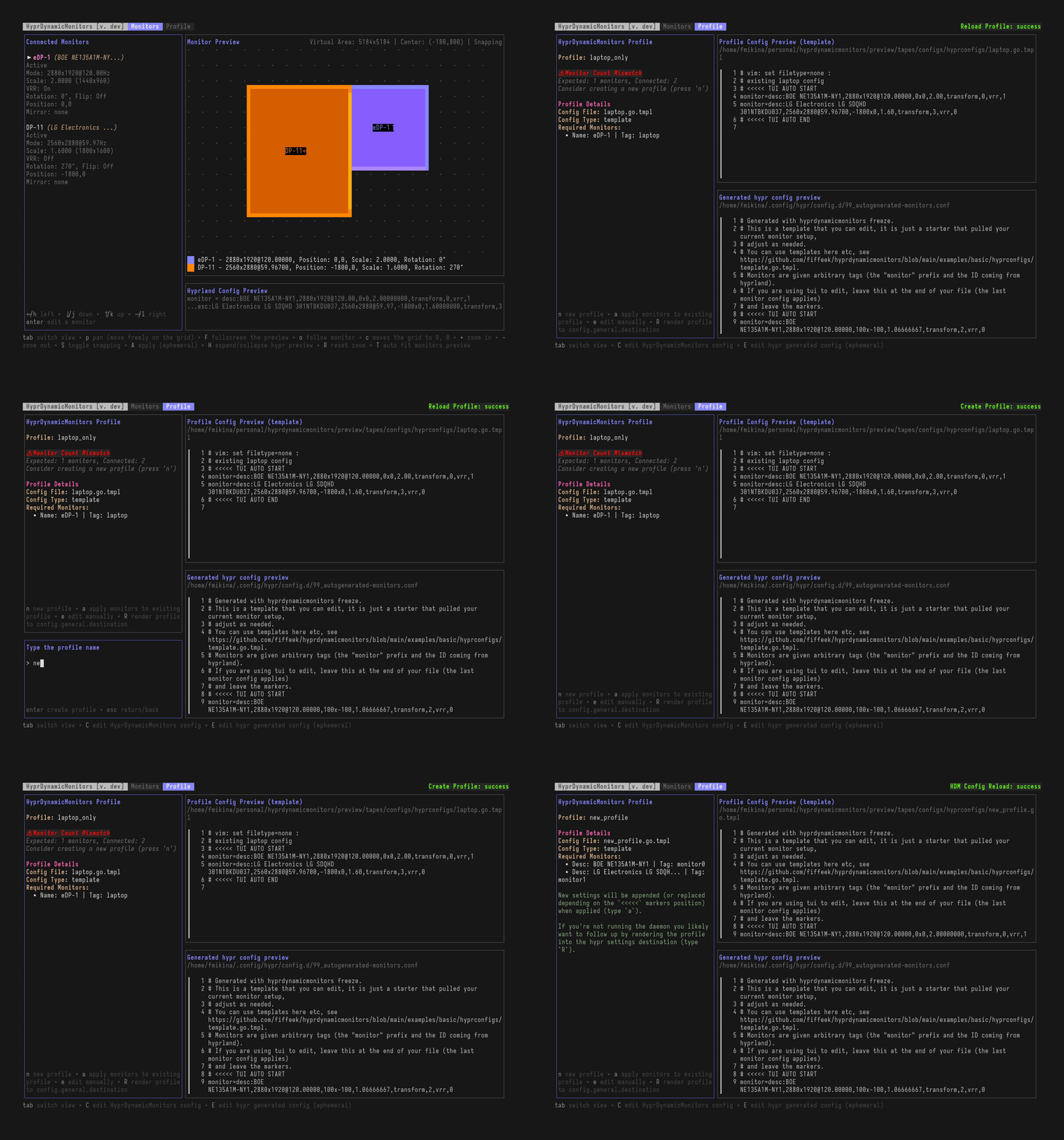
When you set up a new monitor configuration:
- Launch the TUI:
hyprdynamicmonitors tui - In the Monitors view:
- Select monitors with arrow keys and press
Enterto edit - Adjust position (
h/j/k/l), scale (s), rotation (r), resolution (m), etc. - Press
Tfrequently to auto-fit monitors in the preview pane
- Select monitors with arrow keys and press
- Optionally test with ephemeral apply:
Athen confirm withY - Switch to Profile view with
Tab - If you see "No Matching Profile", press
nto create a new profile - Type the profile name and press
Enter - The profile is saved to your HDM config and a template file is created under
~/.config/hyprdynamicmonitors/hyprconfigs/${profile_name}.go.tmpl - Without daemon: Press
Rto manually render the configuration to your destination file - The rendered configuration is written to
config.general.destination(typically~/.config/hypr/monitors.conf)
Make sure your Hyprland config sources the destination file: source = ~/.config/hypr/monitors.conf in ~/.config/hypr/hyprland.conf
Adjusting an existing profile
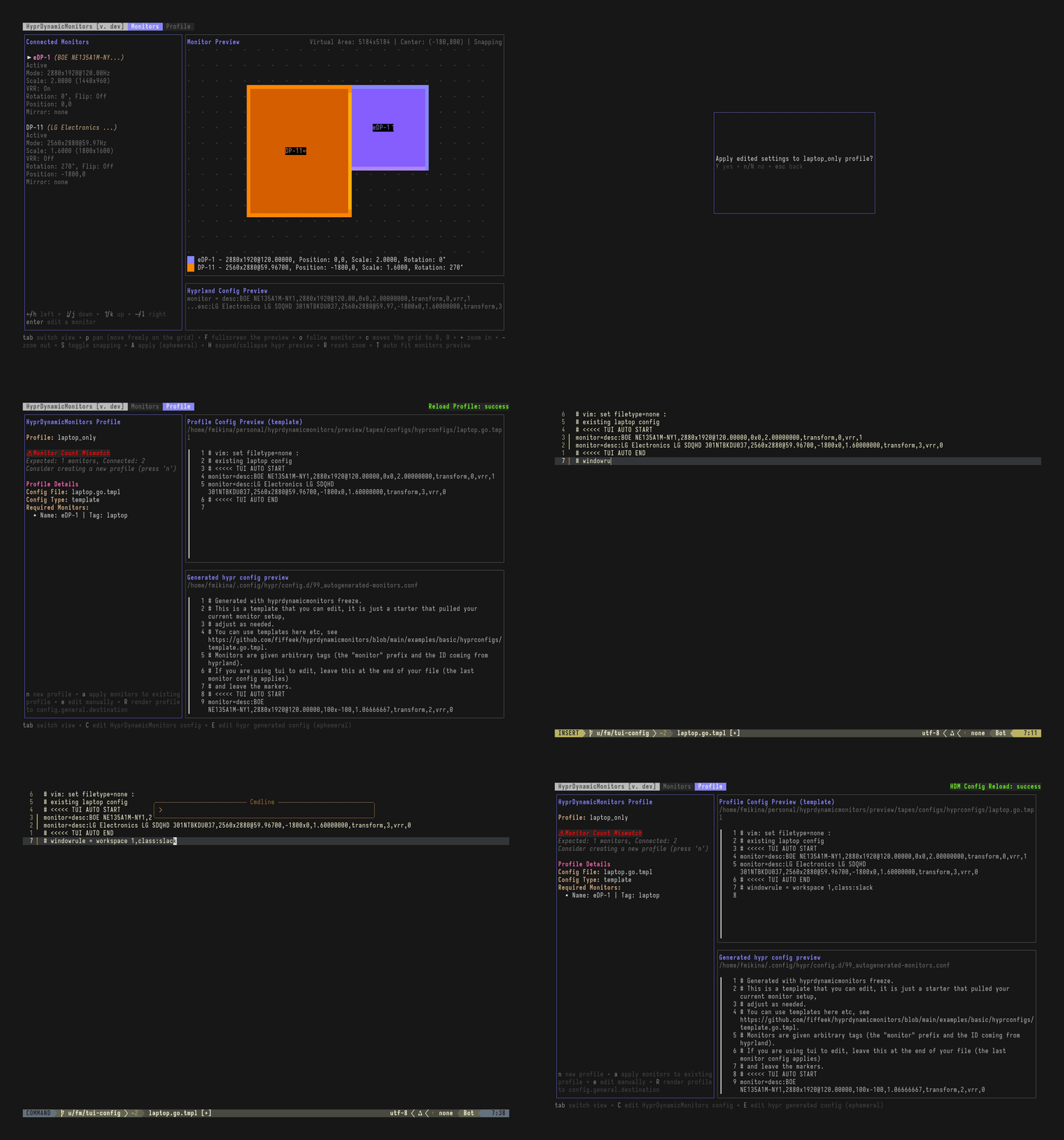
When modifying an existing monitor setup:
- Launch the TUI:
hyprdynamicmonitors tui - The Profile view will show the matching profile name if one exists
- Switch to Monitors view and make your changes
- Optionally test with ephemeral apply:
AthenY - Switch back to Profile view with
Tab - Press
ato apply changes to the existing profile - Confirm with
Y
The TUI will:
- Replace the content between the
>>>>>TUI markers if they exist (from previous TUI edits orhyprdynamicmonitors freeze) - Or append a new
>>>>>markers block at the end of the profile file if markers aren't found
- Without daemon: Press
Rto manually render the updated configuration to the destination file
Rendering
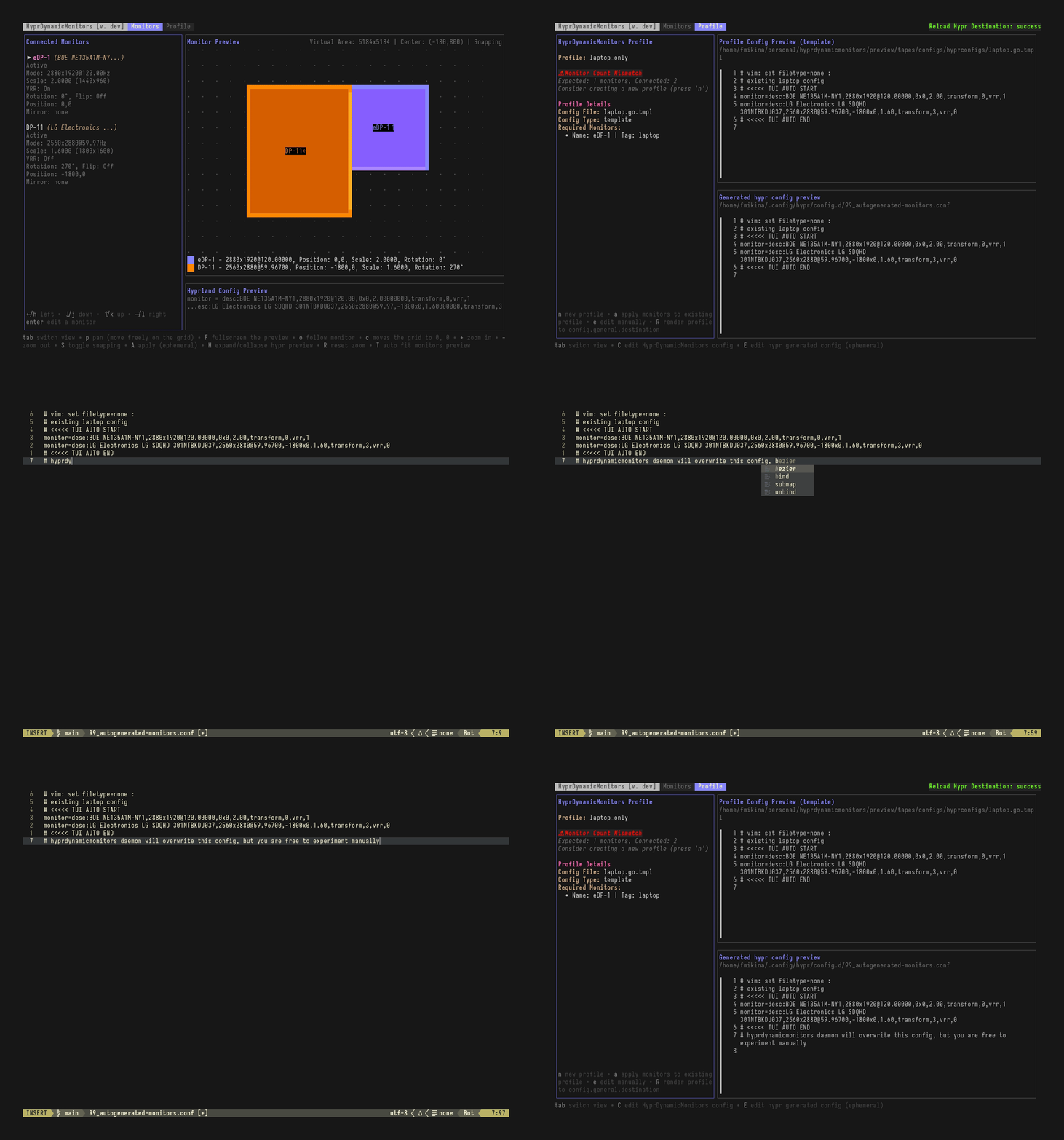
When running without the daemon, rendering must be triggered manually:
- In the TUI: Press
Rin the Profile view to render configuration to the destination file
The rendering process:
- Reads your HDM config and profiles
- Matches current monitors to the appropriate profile
- Generates Hyprland monitor configuration syntax
- Writes to
config.general.destinationfile
With the daemon running, rendering happens automatically when monitors or configuration changes. Without it, you control when configuration is written to disk.
Regular workflow
For day-to-day adjustments when running without a daemon, follow this streamlined workflow:
- Launch the TUI:
hyprdynamicmonitors tui - Adjust monitors: Make changes in the Monitors view
- Select and edit monitors as needed
- Use
Tto auto-fit the preview - Test with ephemeral apply (
AthenY) if desired
- Save to profile: Switch to Profile view with
Tab- For new configurations: press
nto create a new profile - For existing configurations: press
ato update the matching profile
- For new configurations: press
- Render configuration: Press
Rto write the rendered config to your destination file - Reload Hyprland: The changes take effect automatically when Hyprland reloads the sourced config file (typically happens immediately)
For minor tweaks to an existing profile: Monitors view → adjust → Tab → a → Y → R
This approach gives you full control over when configuration changes are persisted to disk, without the automatic behavior of the daemon.