Getting started with the TUI
The HyprDynamicMonitors TUI provides an interactive interface for managing Hyprland monitor configurations. You can use it to visually arrange monitors, save configurations as profiles, and manage your setup—either with or without the daemon.
Prerequisites
Before using the TUI effectively, you need to configure Hyprland to use the generated monitor configuration:
-
Add this line to your
~/.config/hypr/hyprland.conf:source = ~/.config/hypr/monitors.conf -
Decide whether to run the daemon (see Setup Approaches for guidance):
- With daemon: Profiles automatically switch when monitors change
- Without daemon: You manually render configurations using the
Rkey
Without the source line in your Hyprland config, the TUI-generated configurations won't take effect.
First Launch
When you first launch the TUI, it will:
hyprdynamicmonitors tui
- Create a default configuration at
~/.config/hyprdynamicmonitors/config.tomlif it doesn't exist - Show your currently connected monitors in the Monitors view
- Display current monitor settings (position, resolution, scale) as reported by Hyprland
The default configuration includes power event monitoring (depending on the platform) but no profiles—you'll create those using the TUI.
Additional Launch Options
# Use a custom configuration file
hyprdynamicmonitors tui --config /path/to/config.toml

# Enable lid event monitoring (requires UPower)
hyprdynamicmonitors tui --enable-lid-events
See TUI CLI options for all available options.
Quick Start: Create Your First Profile
The fastest way to get started:
- Launch the TUI:
hyprdynamicmonitors tui - Adjust your monitors (if needed):
- Use arrow keys to select a monitor
- Press
Enterto edit it - Use
h/j/k/lto move position,sto adjust scale,mto change resolution - Press
Enteragain to finish editing
- Save as a profile:
- Press
Tabto switch to the Profile view - Press
nto create a new profile - Type a name (e.g., "laptop-only" or "desk-setup") and press
Enter
- Press
- Done! Your profile is now saved
With daemon running: Your configuration is automatically written to ~/.config/hypr/monitors.conf and Hyprland applies it immediately.
Without daemon: Press R in the Profile view to manually write the configuration to the destination file.
Views Overview
The TUI has two main views that you can switch between using Tab:
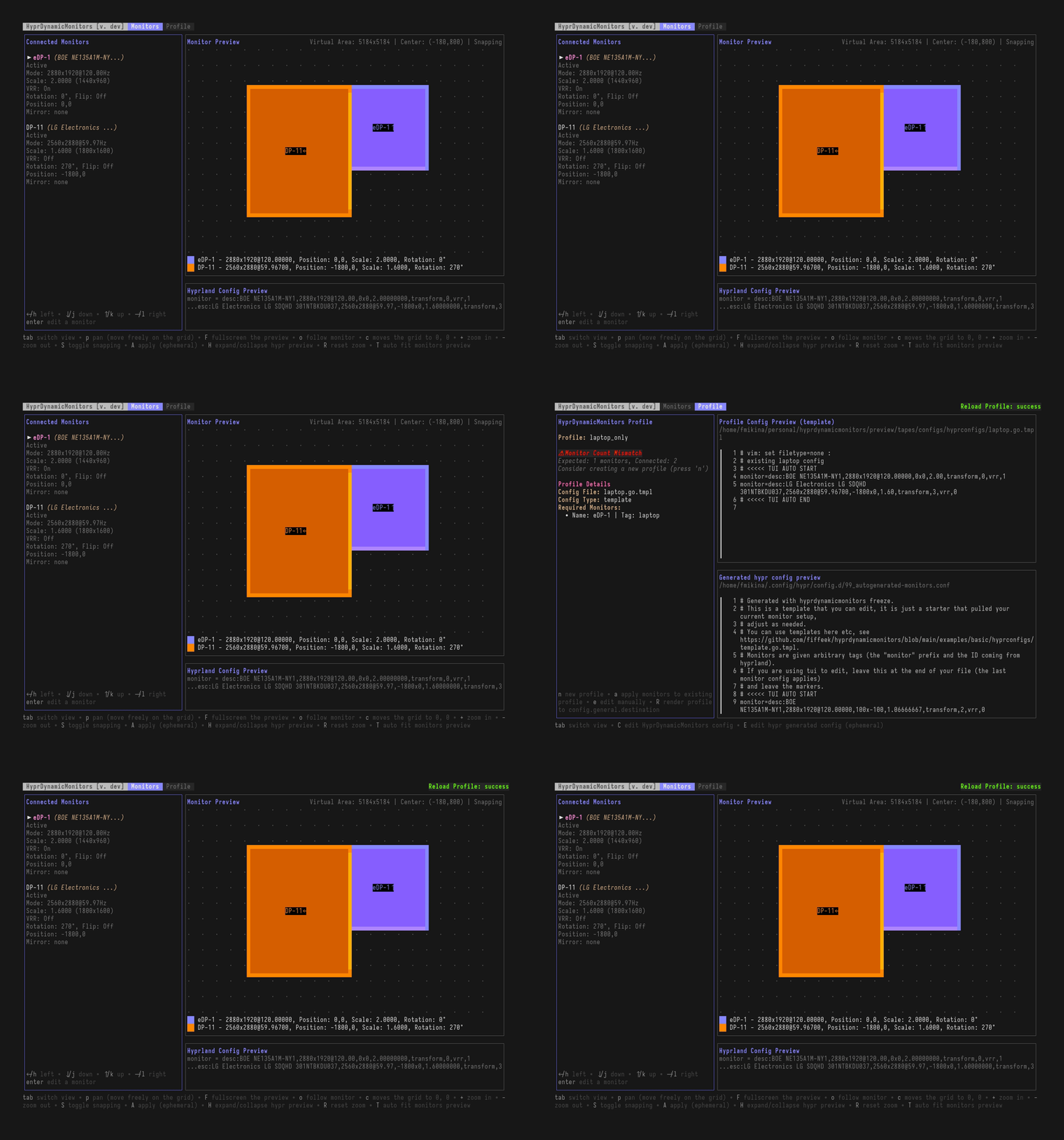
Monitors View
Edit monitor layouts, positions, modes, and settings. This view shows:
- Left panel: List of connected monitors with their current settings
- Right panel: Visual preview of monitor layout
You can adjust monitors, test changes ephemerally (without saving), and arrange your layout visually.
Profile View
Manage HyprDynamicMonitors profiles and configuration. This view shows:
- Which profile currently matches your monitor setup (or "No Matching Profile")
- Options to create new profiles or update existing ones
- Controls to render and edit configuration files
Profile matching works by comparing your connected monitors to the required_monitors defined in each profile. See Understanding Profile Matching for details.
Basic Workflows
Adjusting Monitors
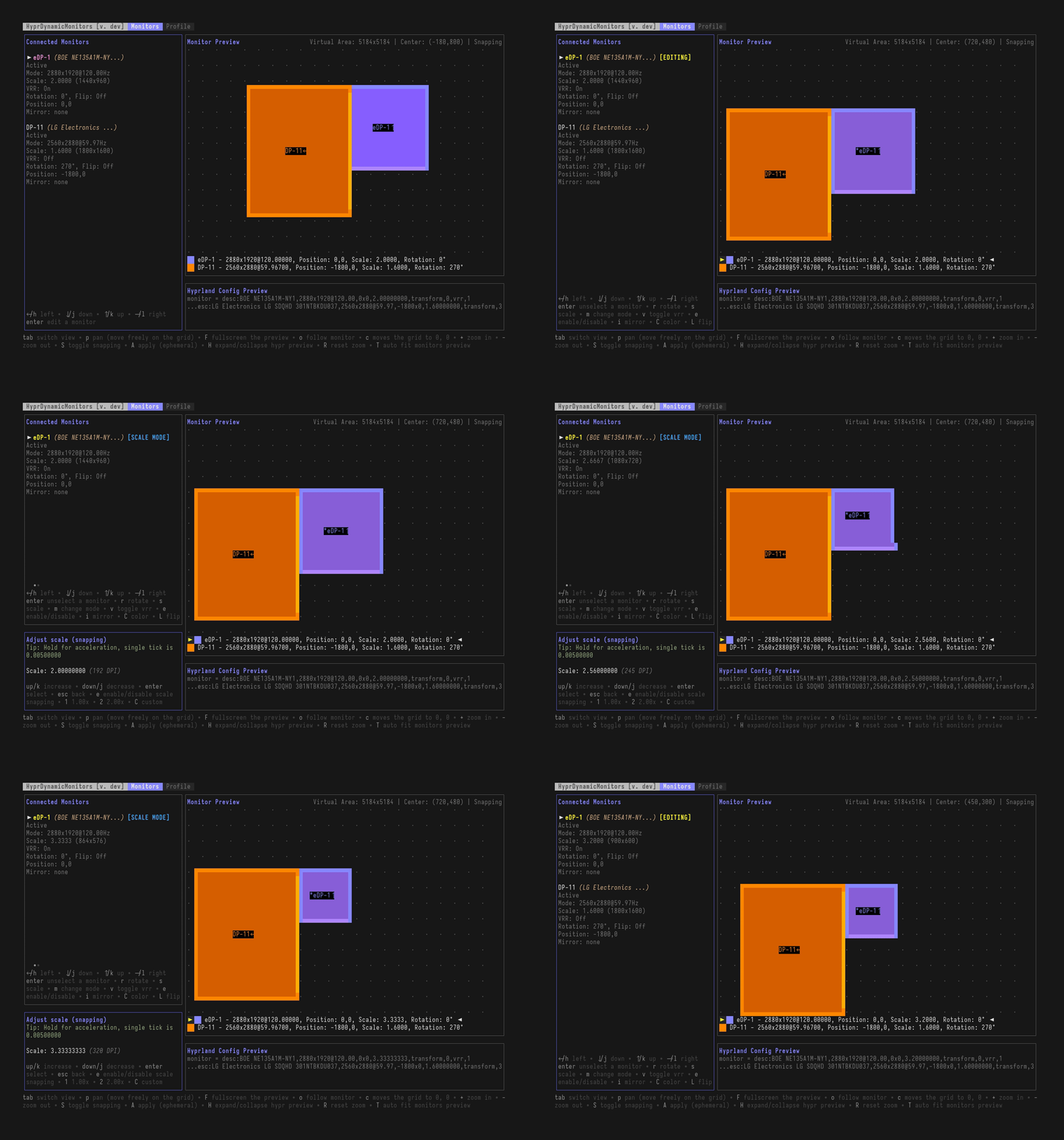
In the Monitors view, you can change monitor placement, scale, rotation, resolution, and more (see all available options in the TUI reference).
To adjust a monitor:
- Use arrow keys to select a monitor from the list
- Press
Enterto enter editing mode - Make your adjustments using the available keybinds:
h/j/k/l- Move positions- Adjust scalem- Change resolution/refresh rater- Rotate 90 degreesv- Toggle VRR (Variable Refresh Rate)e- Enable/disable monitor
- Press
Enteragain to exit editing mode
Press T frequently when making layout changes—it automatically fits all monitors to the preview pane for a better view.
Ephemeral Apply
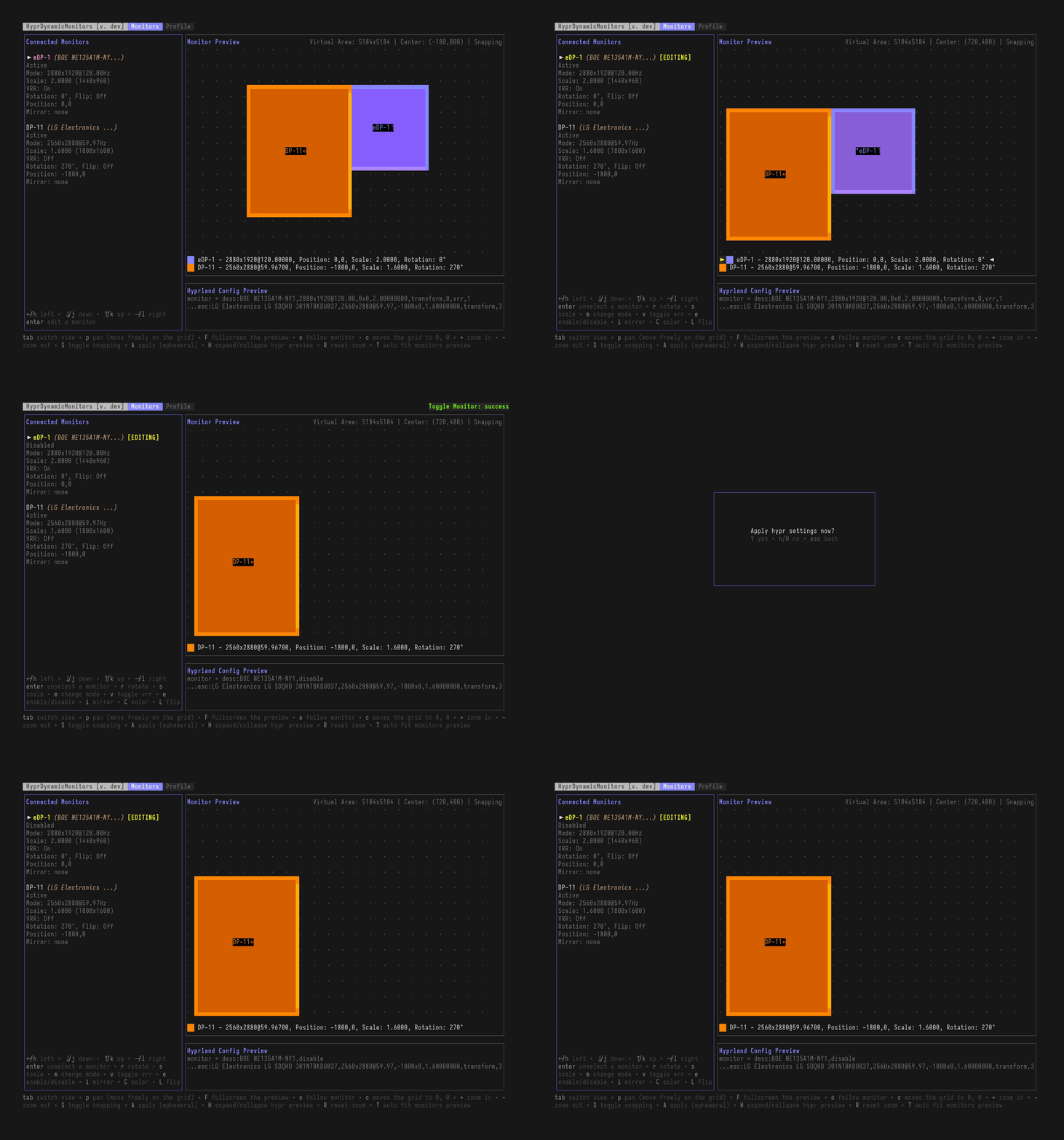
After adjusting monitors, you can apply them ephemerally—applying changes immediately to Hyprland without saving to a profile:
- Press
Ato apply changes - Confirm with
Y(or cancel withNorEsc)
This is useful when you need to:
- Test a new layout before committing it to a profile
- Make temporary on-the-fly adjustments
- Preview how changes will look in practice
Ephemeral apply sends the configuration directly to Hyprland using hyprctl. These changes:
- Take effect immediately
- Are not saved to any profile or configuration file
- Will be lost when you unplug/replug monitors, restart Hyprland, or reboot
Adding a New Profile
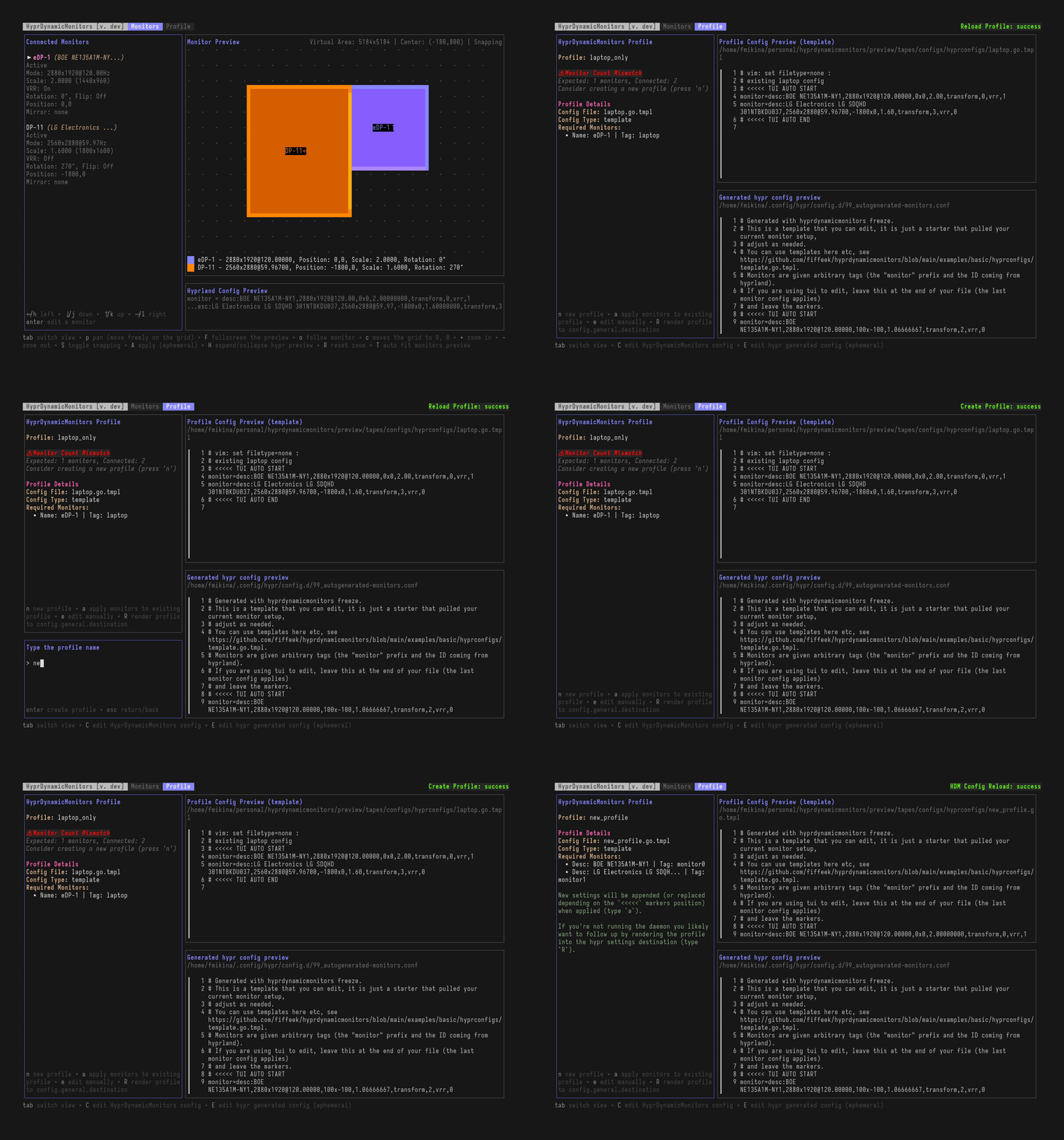
When you've set up a new monitor configuration that doesn't match any existing profile:
- Adjust your monitors in the Monitors view
- Optionally test with ephemeral apply (
A→Y) - Switch to the Profile view with
Tab - If you see "No Matching Profile", press
nto create a new profile - Enter a name for your profile (e.g., "home-desk", "presentation-mode") and press
Enter
This creates two files:
1. Profile entry in ~/.config/hyprdynamicmonitors/config.toml:
[profiles.your_profile_name]
config_file = "hyprconfigs/your_profile_name.go.tmpl"
config_file_type = "template"

[[profiles.your_profile_name.conditions.required_monitors]]
description = "Your Monitor Description"
# One entry for each connected monitor
2. Template file at ~/.config/hyprdynamicmonitors/hyprconfigs/your_profile_name.go.tmpl:
monitor=eDP-1,2880x1920@120.00000,0x0,2.0,vrr,1
# One line for each monitor with your configured settings
With daemon running: The profile is automatically rendered to your destination file (~/.config/hypr/monitors.conf by default), and Hyprland applies it immediately.
Without daemon: Press R to manually render the configuration to the destination file.
Changing an Existing Profile
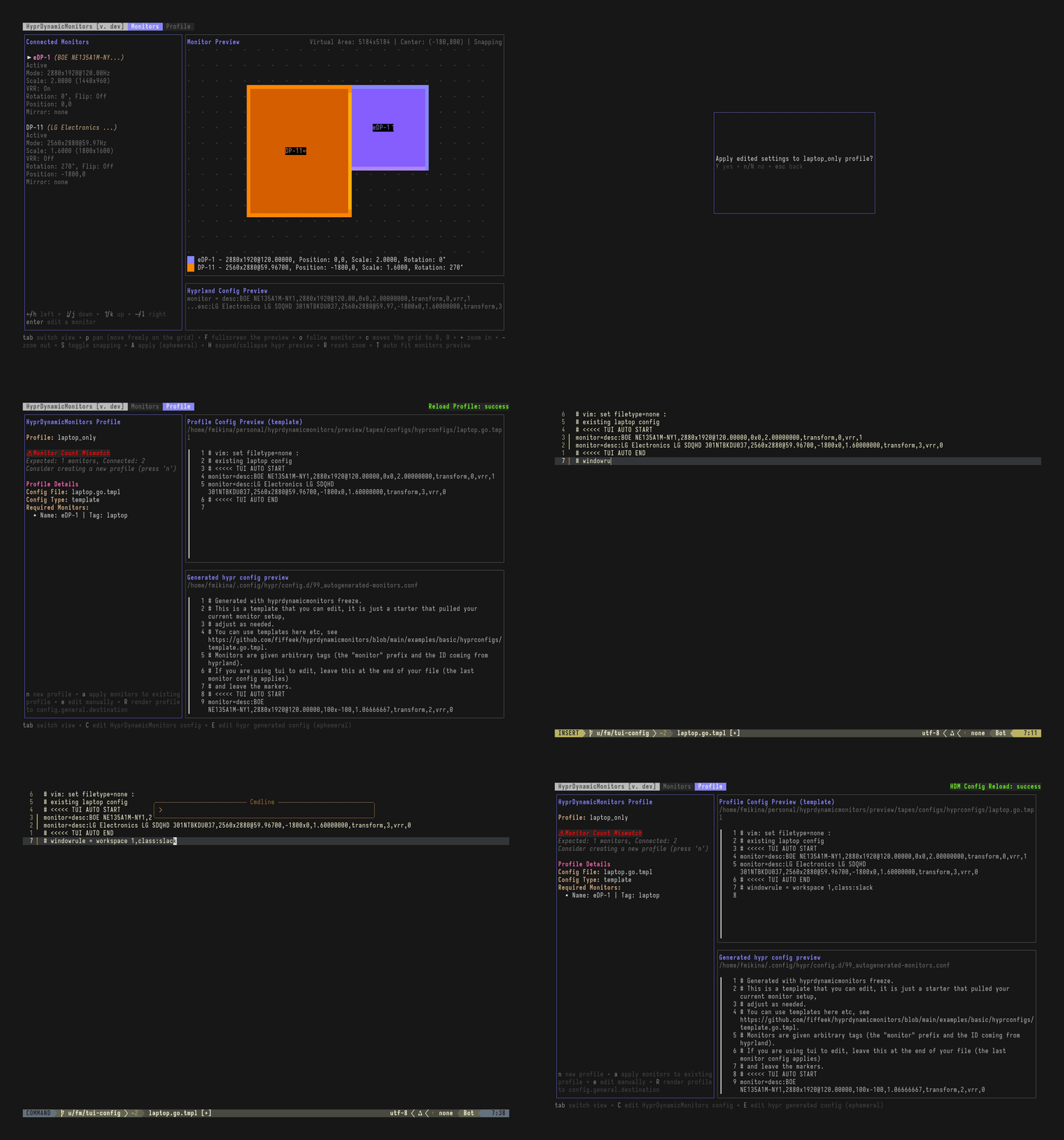
When modifying a monitor configuration that matches an existing profile:
- Make your changes in the Monitors view
- Optionally test with ephemeral apply (
A→Y) - Switch to the Profile view with
Tab - The matching profile name will be displayed (e.g., "Profile: laptop-only")
- Press
ato apply changes to the existing profile - Confirm with
Y
The TUI will update the profile template file by:
- Replacing content between the
# <<<<<TUI markers (if they exist from previous TUI edits orhyprdynamicmonitors freeze) - Or appending a new TUI markers block at the end of the file (if markers aren't found)
This allows you to manually add custom Hyprlang directives (like windowrule, workspace settings, etc.) to your profile files—the TUI will preserve those sections and only update the monitor configuration within the markers.
With daemon running: Changes are automatically rendered to the destination file.
Without daemon: Press R to manually render the updated configuration.
Manual Editing
You can also press e in the Profile view to manually edit the existing profile configuration file—this allows you to add other Hyprlang directives such as windowrule, workspace rules, or any other Hyprland configuration to customize the profile to your liking.
When you save and exit your editor, the TUI will reload the configuration automatically.
Understanding the System
How HyprDynamicMonitors Works
In essence, what hyprdynamicmonitors does is:
- Aggregate system information about battery/lid states (optional)
- Aggregate information from Hyprland about currently connected outputs (like
hyprctl monitors all) - Read user-defined profiles from
config.toml - Find the best matching profile by comparing connected monitors to each profile's
required_monitors - Render the configuration to the
config.general.destinationlocation (either from a template or by symlinking a static file)
This is a simplified view, but it gives you a good understanding of the system. In reality, it responds to events, aggregates state on startup, sends notifications, and may execute callbacks. See Configuration Overview for more details.
Key Terminology
Understanding these key terms will help you work efficiently with the TUI:
-
HDM config: The HyprDynamicMonitors configuration file (typically
~/.config/hyprdynamicmonitors/config.toml) that stores profile definitions and settings. See Configuration Overview for details. -
Profile: A saved monitor layout in HDM that includes:
- Which monitors it applies to (
required_monitors) - What configuration file to use (
config_file) - Optional conditions (power state, lid state)
See Profiles for details.
- Which monitors it applies to (
-
Template file: A Go template file (
.go.tmpl) that generates Hyprland monitor configuration dynamically. Created by the TUI when you save a profile. See Templates for details. -
Static file: A plain Hyprland configuration file (
.conf) that contains fixed monitor settings. The daemon creates a symlink to it instead of rendering. -
Applying monitors to profile: Saving the current monitor layout settings to an existing or new profile in your HDM config file. This updates the profile's template file.
-
Rendering configuration to destination: Generating the final Hyprland monitor configuration from HDM profiles and writing it to the destination file (typically
~/.config/hypr/monitors.conf). This is the file that Hyprland actually reads.
Understanding Profile Matching
Profile matching determines which profile HDM should use for your current setup. A profile matches when:
- All required monitors are connected: Every monitor listed in
[[profiles.NAME.conditions.required_monitors]]must be present - Power state matches (if specified): The current AC/battery state matches
power_state = "AC"or"BAT" - Lid state matches (if specified): The current lid state matches
lid_state = "Opened"or"Closed"
Matching by monitor:
- By name: The connector name like
eDP-1,DP-1,HDMI-A-1(exact match or regex) - By description: The monitor model/manufacturer string from
hyprctl monitors(exact match or regex)
You can think about profile matching as: "Do I have the same monitors connected?" The system checks both the monitor names/descriptions and optional conditions like power state to find the best match.
When the TUI creates a profile, it automatically adds all connected monitors to required_monitors (matched by description), so the profile will match that exact monitor setup in the future.
When multiple profiles match, HDM uses a scoring system to pick the best one. Generally, more specific profiles (with more required monitors or additional conditions) score higher.
Daemon vs TUI-Only Usage
Running a Daemon Alongside the TUI
If you choose to run the daemon alongside the TUI, rendering the configuration is handled automatically by the daemon—it actively watches configuration files and re-renders on changes.
How it works:
- Daemon runs in background (
hyprdynamicmonitors run) - Monitors for display connect/disconnect events via Hyprland IPC
- Monitors for power state changes via D-Bus (optional)
- Monitors for lid state changes via D-Bus (optional)
- Automatically renders and applies the matching profile when state changes
- Watches config files for changes and re-renders (hot reload)
This is the recommended approach for most users, especially laptop users who connect/disconnect monitors frequently.
Using Only the TUI
If you choose not to run the daemon, then after making changes to a profile, you need to explicitly render the configuration using R in the Profile view.
How it works:
- You manually launch the TUI when needed
- You manually press
Rto render configuration to the destination file - Hyprland automatically reloads the sourced config file (usually immediate)
- No automatic profile switching when monitors change
This approach is best for desktop users with stable monitor setups. See Running without a daemon guide for detailed workflows.
Advanced Topics
TUI Markers (# <<<<<)
When you save a profile using the TUI (with n or a), the TUI creates or updates the profile's template file with special marker comments:
# <<<<< TUI AUTO START
monitor=eDP-1,2880x1920@120.00000,0x0,2.0,vrr,1
monitor=DP-1,3840x2160@60.00000,2880x0,1.0
# <<<<< TUI AUTO END
These markers allow the TUI to:
- Update only the monitor configuration when you save changes
- Preserve your manual edits outside the markers (like custom
windowruledirectives)
If you manually edit the file and remove the markers, the TUI will append a new markers block at the end of the file on the next save.
Template Files vs Static Files
When the TUI creates a profile, it uses template files (.go.tmpl) by default. These are Go templates that can include:
- Dynamic logic: Different settings based on power state, monitor tags, etc.
- Template variables: Access to monitor properties, system state, custom values
Example template:
{{- $laptop := index .MonitorsByTag "laptop" -}}
monitor={{$laptop.Name}},{{if isOnAC}}2880x1920@120{{else}}1920x1080@60{{end}},0x0,2.0
If you prefer static files (plain Hyprland config), you can:
- Create a
.conffile manually in~/.config/hyprdynamicmonitors/hyprconfigs/ - Edit your
config.tomlto use it:[profiles.my_profile]
config_file = "hyprconfigs/my_profile.conf"
config_file_type = "static"
See Templates for the full template syntax and capabilities.
Common Questions
What happens if I don't press R without the daemon?
Your profile changes are saved to the HDM config and template files, but Hyprland won't use them yet. The destination file (~/.config/hypr/monitors.conf) still contains the old configuration. Press R to render the new configuration to the destination file.
What happens if I close the TUI without saving?
Any monitor adjustments you made are lost—they were only in the TUI's temporary state. To persist changes, you must:
- Press
nto create a new profile, OR - Press
ato update an existing profile
What happens if I press A (ephemeral apply) then reboot?
Ephemeral changes are temporary and will be lost. After reboot, Hyprland will use whatever configuration is in your destination file (~/.config/hypr/monitors.conf). To make changes permanent, save them to a profile.
When should I create a new profile vs update an existing one?
Create a new profile (n) when:
- The TUI shows "No Matching Profile"
- You're setting up a different physical environment (different monitors connected)
- You want multiple profiles for the same monitors with different settings (see Dynamic Profile Modes Pattern)
Update an existing profile (a) when:
- The TUI shows a matching profile name
- You want to tweak settings for your current monitor setup
- You're fixing or improving an existing profile's configuration
Can I use the TUI without creating any profiles?
Yes! You can use ephemeral apply (A) to make on-the-fly adjustments without saving anything to profiles. This is useful for:
- Quick testing
- One-time presentations
- Temporary monitor setups
However, these changes won't persist across Hyprland restarts or monitor changes.
What if I manually edit a template file?
That's perfectly fine! You can:
- Add custom Hyprlang directives (
windowrule,workspace, etc.) - Modify the monitor configuration manually
- Add template logic for dynamic behavior
If you edit inside the # <<<<< markers, the TUI will overwrite your changes when you save the profile again. Edit outside the markers to preserve your changes, or remove the markers entirely if you want full manual control (the TUI will append new markers on the next save).
See Also
- TUI Reference - Complete TUI keybinds and features
- CLI Commands - Command line options
- Running without a daemon - TUI-only workflows
- Setup Approaches - Choose your setup method
- Profiles - Profile configuration details
- Monitor Matching - How profile matching works
- FAQ - Common questions